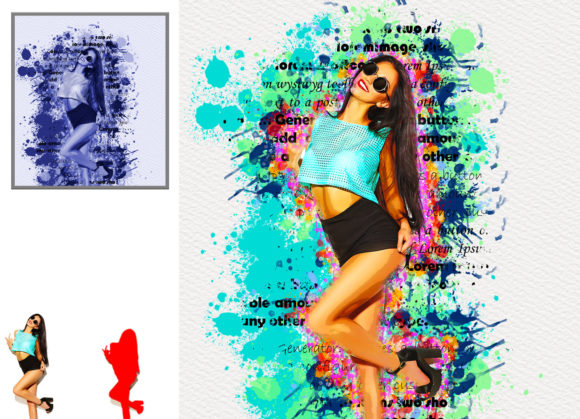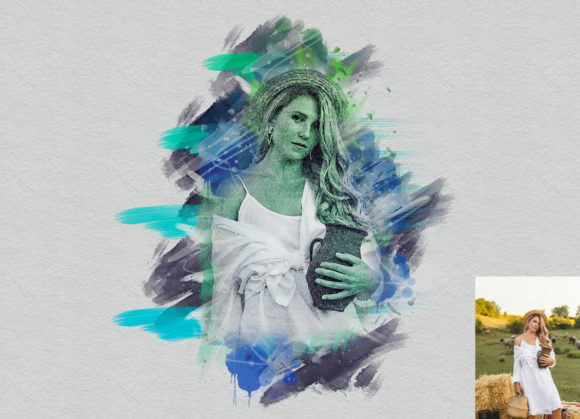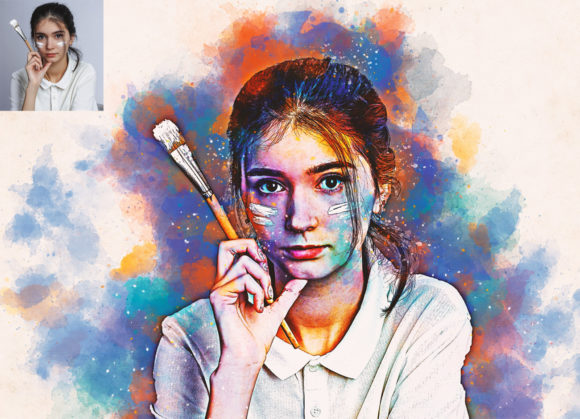
Transforming Photography into Painting with the Watercolor Art Photoshop Action
Digital photography has given us the power to capture moments with stunning clarity, but sometimes, raw realism isn't the artistic statement you want to make. There is a growing demand among photographers, graphic designers, and digital artists to soften the harsh edges of high-resolution images, replacing them with the fluid, organic beauty of traditional media. This is where the Watercolor Art Photoshop Action becomes an invaluable tool. It bridges the gap between photographic precision and painterly expression, allowing users to transform standard photos into authentic-looking watercolor artworks with minimal effort and maximum creative control.
The desire to mimic traditional art forms digitally is not new, but achieving a result that looks genuine rather than like a cheap filter is challenging. Many basic filters apply a uniform blur or texture overlay that fails to respect the light, shadow, and composition of the original image. The Watercolor Art Photoshop Action addresses this by utilizing a non-destructive workflow that adapts to your specific image. Whether you are creating social media content, designing wedding invitations, or producing fine art prints, this tool offers a professional solution that saves hours of manual painting time while delivering high-quality, customizable results.
Why Choose a Non-Destructive Workflow?
One of the most significant advantages of using a dedicated Photoshop action over manual editing or third-party plugins is the preservation of your original data. When working with digital art, flexibility is paramount. The Watercolor Art Photoshop Action is built on a non-destructive foundation. This means that every adjustment, brush stroke, and color shift can be tweaked, hidden, or removed without permanently altering the source photograph. For professionals who may need to revert changes or adjust the intensity of the effect for different clients, this feature is essential.
Furthermore, the action is designed to be easy to customize. Unlike rigid presets that offer a "one-size-fits-all" outcome, this tool provides ten different color options accessible through the layers panel. By simply toggling the visibility of specific layers—often referred to as opening the "unviewed eye" in layer terminology—you can instantly shift the mood and palette of your artwork. This level of control ensures that the final piece aligns perfectly with your creative vision, whether you prefer warm, earthy tones or cool, vibrant hues.
Compatibility and Technical Requirements
Before diving into the creative process, it is important to ensure that your software environment is compatible with the tool. The Watercolor Art Photoshop Action is optimized for a wide range of Adobe Photoshop versions, ensuring accessibility for both legacy users and those on the cutting edge. It supports English versions of CS5, CS5.5, CS6, CC, CC2014, CC2015.5, CC2017, CC2018, CC2019, and CC2020. If you are working with the CC2020 English Version, you will experience seamless integration, as this was the primary testing environment for the action’s development.
To achieve the best possible results, technical preparation is key. The action performs optimally when used with high-resolution images. It is strongly recommended to use photos with dimensions around 2000x3000 pixels. Lower resolution images may lack the detail necessary for the watercolor textures to render correctly, resulting in a muddy or pixelated appearance. Conversely, extremely large files may slow down processing time without adding significant visual benefit. Balancing file size with quality ensures a smooth workflow and a crisp, high-quality final output.
Step-by-Step Implementation Guide
Using the Watercolor Art Photoshop Action is straightforward, but following the correct sequence of steps is crucial for success. The process is designed to be intuitive, even for those who are not expert Photoshop users. Here is how to effectively implement the action:
- Prepare Your Workspace: Begin by opening your chosen photo in Photoshop. Ensure the image meets the recommended resolution guidelines (approx. 2000x3000px) for optimal texture rendering.
- Create the Brush Layer: This is the most critical step. Create a new layer above your background image. You must rename this layer exactly as “brush” in lowercase letters. The action relies on this specific naming convention to identify where your manual input should be applied.
- Define the Focus: Select a soft brush from your toolbar. On the newly created “brush” layer, paint over the areas of the image you want to emphasize or retain sharpness in. This technique allows you to control which parts of the photo remain detailed and which parts dissolve into the watercolor effect. Once you are satisfied with your brushing, close the eye icon on the “brush” layer to hide it.
- Execute the Action: Select your background layer to ensure it is active. Navigate to your Actions panel and click the play button for the Watercolor Art Photoshop Action. The software will now process the image, applying the complex algorithms that simulate watercolor bleeding, paper texture, and pigment granulation.
- Customize the Result: Once the action completes, you will see multiple new layers and groups. Open the visibility (eye) icons for the color option layers to cycle through the ten different color presets. You can also easily change brush colors if further manual refinement is needed.
Practical Applications and Creative Outcomes
The versatility of the Watercolor Art Photoshop Action makes it suitable for a variety of creative industries. For wedding photographers, it offers a romantic, dreamy aesthetic that appeals to couples looking for unique album designs. By transforming portraits into soft, flowing paintings, photographers can offer premium add-on services that differentiate them from competitors. Similarly, real estate agents and interior designers can use this tool to create artistic renditions of property listings, softening the clinical feel of standard architectural photos to evoke a sense of home and warmth.
Digital marketers and social media managers also benefit from this tool. In a feed saturated with hyper-realistic imagery, watercolor-style posts stand out due to their artistic and handcrafted appeal. The ability to quickly generate these visuals means that content calendars can be filled with unique, eye-catching graphics without the need for hiring an illustrator. Additionally, the included resources—such as the ATN file, custom brushes, patterns, and comprehensive PDF help files—ensure that users have everything they need to troubleshoot and expand their creative possibilities.
Tailoring the Approach for Different Users
Different users will approach the Watercolor Art Photoshop Action with varying goals. A fine artist might use it as a base layer, manually painting over the result to add personal touches and unique textures. In this case, the action serves as a time-saving underpainting. On the other hand, a hobbyist might use the action as a final product, relying on the ten preset color options to find the perfect match for their style. Understanding your end goal helps determine how much post-processing you should do after running the action.
For beginners, the included "Read me First" and Help files are indispensable resources. They provide clarity on common issues, such as layer naming errors or compatibility checks. Advanced users, meanwhile, can dive into the non-destructive layer structure to tweak opacity settings, blend modes, and mask densities, pushing the tool beyond its default settings to create truly bespoke artworks.
Final Considerations for Best Results
To maximize the potential of the Watercolor Art Photoshop Action, keep in mind that the quality of the input determines the quality of the output. Images with strong contrast and clear subjects tend to yield the most striking watercolor effects. Soft, low-contrast images may result in a washed-out look unless carefully managed with the brush layer technique. Additionally, while the action is powerful, it is not a replacement for artistic judgment. Taking the time to carefully paint the “brush” layer ensures that the focal points of your image remain engaging.
In conclusion, this tool represents a sophisticated yet accessible way to merge photography and painting. By offering a non-destructive, highly customizable, and compatible solution, it empowers creators to produce high-quality watercolor art efficiently. Whether you are enhancing client deliverables or exploring personal artistic projects, the Watercolor Art Photoshop Action provides the technical foundation needed to bring your creative visions to life.