Create Custom Brush Stamps in Photoshop & Procreate
Digital art has evolved far beyond simple pencil tools and standard erasers. Today, texture, organic imperfection, and unique mark-making define the most compelling illustrations and designs. If you have ever felt limited by the default brush libraries in your software, learning how to create brush stamps in Photoshop Procreate is the key to unlocking a truly personalized workflow. This process allows artists to translate physical media into digital assets, ensuring that every stroke carries the weight and character of hand-painted art.
The appeal of custom brushes lies in their versatility. Whether you are a graphic designer looking to add grit to a clean vector layout, an illustrator seeking watercolor bleeds, or a pattern designer needing seamless repeats, custom stamps provide the solution. By mastering this skill, you move from being a consumer of digital tools to a creator of them. This shift not only enhances the quality of your artwork but also establishes a distinctive visual signature that sets your work apart in a crowded marketplace.
Why Develop Brushes from the Ground Up?
Many beginners assume that downloading free brush packs is sufficient. While there is value in community resources, relying solely on pre-made assets can lead to generic-looking results. When you learn to develop Photoshop brushes from the ground up, you gain complete control over spacing, scattering, angle jitter, and texture dynamics. This level of customization ensures that the tool behaves exactly as your artistic intuition demands.
Furthermore, creating your own brushes solves specific problems that off-the-shelf options cannot address. For instance, if you are working on a branding project that requires a specific handwritten logo style, a generic script brush will rarely fit perfectly. By painting your own letterforms or shapes and converting them into stamps, you create a bespoke tool that aligns precisely with the client’s vision. This approach is invaluable for professionals and entrepreneurs who need consistent, unique assets for commercial use.
The Workflow: From Scan to Digital Stamp
The process of creating these tools begins with traditional media or digital painting. One of the most effective methods involves scanning physical paint strokes. However, raw scans often contain dust, paper texture, or uneven lighting. Learning how to clean scanned brushes is a critical step in this workflow. Using adjustment layers and threshold settings in Photoshop, you can isolate the pure black pigment from the white background, ensuring a crisp, high-contrast stamp that interacts correctly with digital blending modes.
Once the image is cleaned, the next phase involves defining the brush preset. This is where technical knowledge meets creative experimentation. You must decide how the stamp behaves when applied. Does it rotate randomly? Does it scatter across the canvas? Or does it maintain a rigid, linear path? Understanding these settings allows you to transform a single painted leaf into a sprawling vine or a lone star into a galaxy.
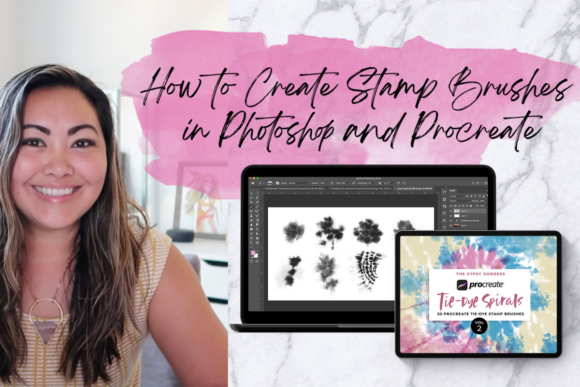
Diane Pascual will teach you how to develop Photoshop brushes from the ground up and convert them to a Procreate-compatible format in this class. This instruction is vital because it bridges the gap between desktop power and mobile convenience. Many artists start their detailed work on a computer but prefer the tactile experience of drawing on an iPad. Knowing how to convert these assets ensures your toolkit travels with you, maintaining consistency across platforms.
Painting Your Own Brushes for Artwork and Patterns
Beyond scanning, you can paint your brushes directly within the software. This technique is particularly useful for creating abstract shapes, geometric patterns, or stylized icons. By painting your brushes to utilize on your artwork or pattern, you eliminate the dependency on external materials. This method is ideal for creating seamless repeats, a common requirement in textile design and surface pattern creation.
For example, a floral designer might paint five distinct petal shapes. By converting these into individual stamps and adjusting the spacing, they can quickly generate endless variations of bouquets without painting each flower manually. This efficiency does not sacrifice creativity; instead, it frees up mental energy for composition and color theory. The ability to manipulate these pictures digitally allows for rapid prototyping, enabling you to test dozens of arrangements in minutes rather than hours.
Practical Applications in Professional Contexts
The utility of custom brush stamps extends across various industries. For marketers and small business owners, these tools can streamline social media content creation. A unique texture brush can turn a plain promotional graphic into something that feels handcrafted and authentic, resonating more deeply with audiences tired of polished, corporate aesthetics.
Educators and freelancers also benefit significantly. Teachers can create custom stamps for digital worksheets, such as specific symbols for math or decorative borders for reading logs. Freelance illustrators can build a library of proprietary assets that speed up their workflow, allowing them to take on more clients without burning out. The initial time investment in creating the brush pays dividends in every subsequent project where it is used.
Key Considerations Before You Start
Before diving into how to create brush stamps in Photoshop Procreate, consider your end goal. Are you aiming for realism or stylization? Realistic brushes require high-resolution scans and careful attention to pressure sensitivity settings. Stylized brushes offer more freedom but require a strong grasp of shape design.
- Resolution Matters: Always start with high-resolution files. A pixelated stamp will look unprofessional when scaled up.
- Contrast is Key: Ensure your source images have strong contrast. Gray areas may translate as semi-transparent spots, which might not be the desired effect.
- Organization: Keep your brush libraries organized. As you create more stamps, naming conventions and folders become essential for efficient retrieval.
Additionally, be mindful of file compatibility. While Photoshop and Procreate share similar underlying technologies, their brush engines have differences. Testing your converted brushes on the target device is crucial to ensure they perform as expected. Some dynamics may need tweaking after conversion to feel natural on a touch screen.
Embracing Creativity Through Technical Skill
Ultimately, the goal of learning these techniques is to remove barriers between your imagination and the canvas. When you possess the skills to craft your own tools, you are no longer limited by what software developers provide. You become the architect of your artistic environment. This empowerment fosters a deeper connection to your work, as every element—from the broadest wash to the finest detail—is a direct extension of your creative intent.
Whether you are cleaning up a scanned ink blotch or designing a complex geometric pattern, the process encourages experimentation. Mistakes in brush creation are often happy accidents that lead to new styles. A glitch in spacing might create a fascinating dotted line effect; an unexpected rotation setting might produce a dynamic wind-blown look. Embrace these possibilities.
By integrating these methods into your routine, you enhance both your technical proficiency and your artistic voice. The ability to move seamlessly between Photoshop and Procreate, armed with a custom toolkit, positions you as a versatile and adaptable creator. So, gather your paints, open your software, and start building the brushes that will define your next masterpiece. Get along and be creative, knowing that you have the power to shape the very tools you use to express yourself.